

Screen Reader Accessible Design: A Developer's Complete Guide to Inclusive Web Experiences
The Web is an essential resource for information, commerce, education, and social interaction. Yet, for the over 1 billion people worldwide living with some form of disability, navigating the average website can be a frustrating and exclusionary experience. Screen readers, software that converts digital text into synthesized speech or braille, are a critical assistive technology for blind and visually impaired users. As frontend developers and UI designers, creating screen reader accessible designs is not just a moral imperative; it’s a professional skill that expands reach, ensures legal compliance, and improves overall code quality.
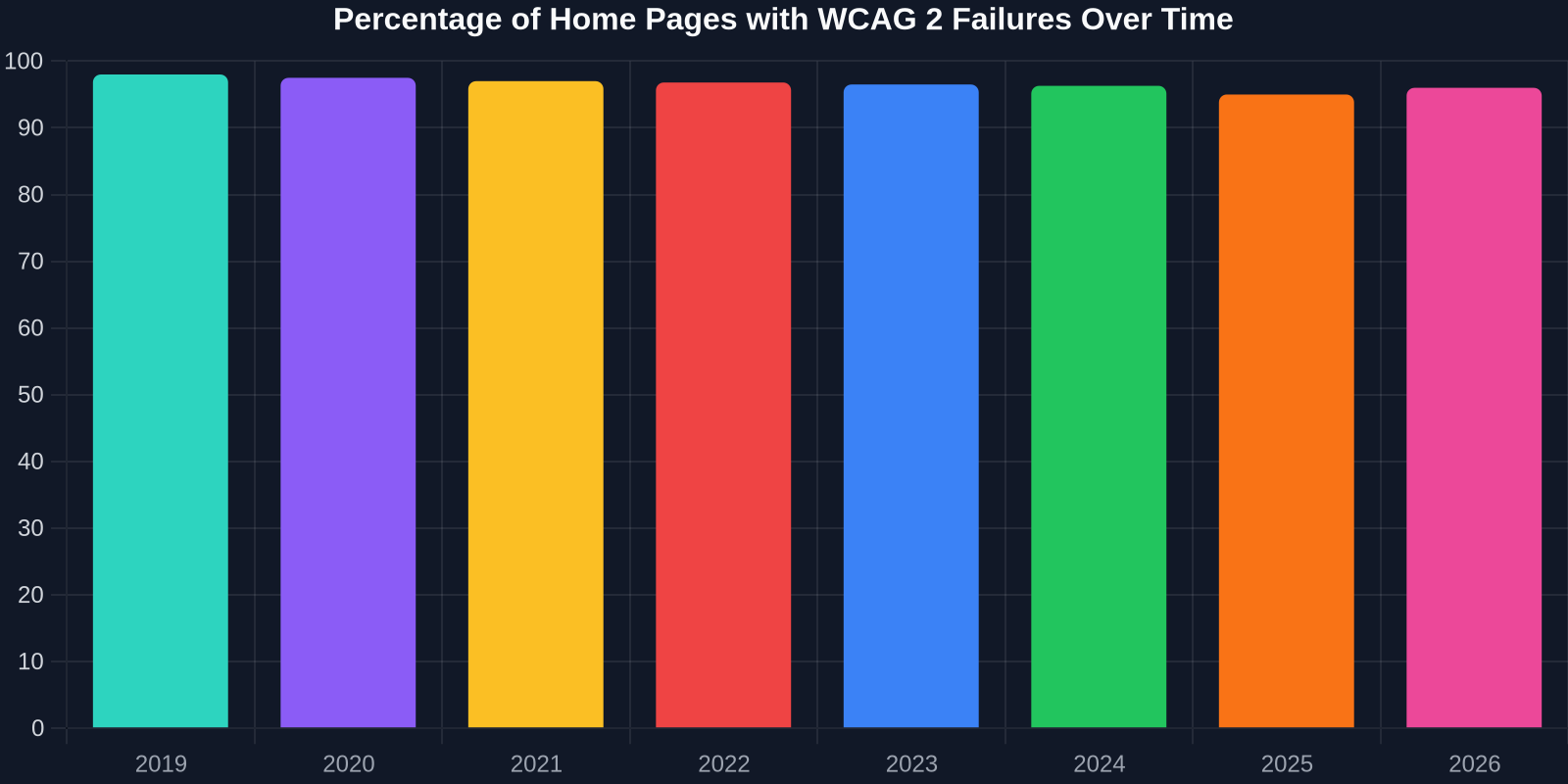
Despite decades of web standards evolution, accessibility remains alarmingly overlooked. WebAIM’s annual scan of 1 million home pages has consistently found that the vast majority contain detectable WCAG (Web Content Accessibility Guidelines) failures, 98% in 2019, 95% in 2025, and 96% in 2026. This stagnation highlights a gap between awareness and implementation. In this guide, we’ll explore practical strategies to bridge that gap, covering everything from semantic HTML to advanced ARIA patterns, and we’ll examine how tools like DivMagic can help you copy, learn from, and build upon accessible UI components.
Understanding How Screen Readers Interpret Your Code
Before diving into design patterns, it’s essential to understand what happens when a blind or visually impaired user visits your site. A screen reader traverses the accessibility tree, a parallel structure to the DOM that browsers expose to assistive technologies. It announces elements based on their roles, names, states, and properties. This means your beautifully styled <div> buttons are just meaningless containers if you don’t give them proper semantics.
Screen readers like NVDA (Windows), JAWS (Windows), VoiceOver (macOS/iOS), and TalkBack (Android) rely entirely on the information you provide through HTML and ARIA. They can’t infer meaning from visual layout. Therefore, every interactive element, heading, image, and landmark must convey its purpose through code.
The Business and Legal Case for Accessibility
Accessibility stopped being optional in many jurisdictions in 2025. The European Accessibility Act (EAA), whose enforcement date was 28 June 2025, requires that websites and mobile applications of public sector bodies and many private sector services meet EN 301 549 (harmonized with WCAG 2.1 AA). In the United States, ADA Title III lawsuits continue to rise, and updates to Section 508 refresh federal procurement standards.

Beyond legal risk, the business case is compelling. Research shows that 71% of users with disabilities will leave a website that is not accessible, often turning to a competitor. Accessible design also improves SEO, mobile usability, and overall user experience for all, a principle known as the “curb cut effect.” When you design for screen readers, you inherently create a more robust, semantic codebase that search engines and other parsing tools understand better.
Core Principles of Screen Reader Accessible Design
Designing for screen readers isn’t about adding a separate “text-only” version; it’s about crafting a single, inclusive experience. The Web Content Accessibility Guidelines (WCAG) 2.1 provide the framework, centered on four principles: Perceivable, Operable, Understandable, and Robust (POUR). Let’s translate these into practical developer tasks.
1. Semantic HTML: Your Foundation
The most powerful accessibility tool is plain HTML used correctly. Use <button> for buttons, <a> for links, <h1>–<h6> for headings (never skip levels), <nav> for navigation regions, <main> for primary content, <aside> for complementary content, <header>, <footer>, and <form> with proper labels. Screen readers announce these natively, no ARIA needed.
Never use a <div> with an onClick as a button. It won’t receive focus, it won’t be announced as a button, and it breaks keyboard interaction. Simple rule: if it does something, make it a <button>; if it goes somewhere, make it an <a>.
2. Provide Clear and Meaningful Text Alternatives
Every non-text content must have a text alternative. For images, this means the alt attribute. If an image is decorative, use alt="" so screen readers ignore it. For complex images like charts, provide a longer description via aria-describedby or a linked text description.
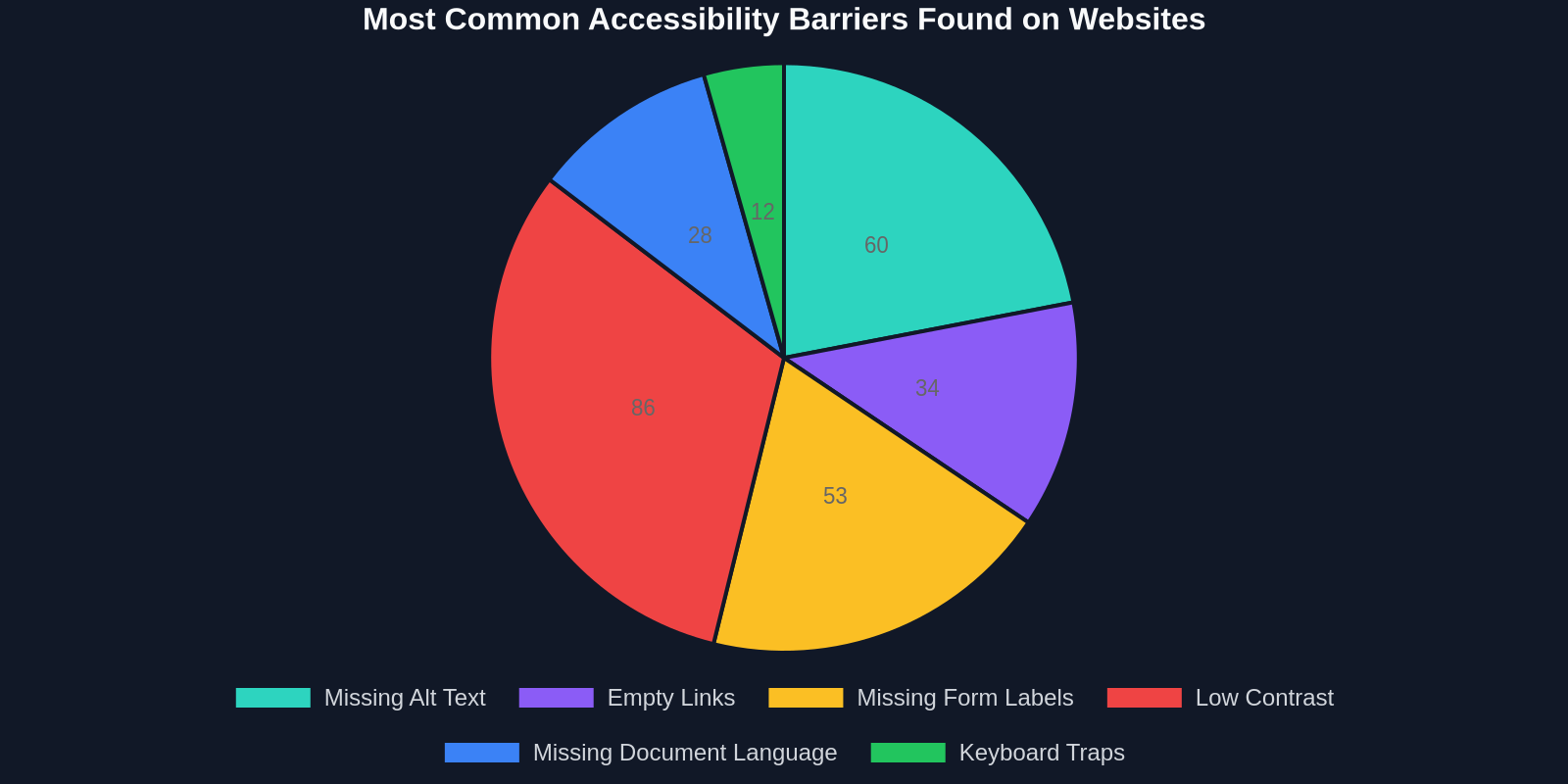
The pie chart above shows common accessibility barriers, with missing alternative text for images consistently topping the charts. Crafting good alt text is an art: it should convey the purpose or the information the image provides, not necessarily describe every visual detail. Ask yourself, “What is the function of this image?” If it’s a submit button with a search icon, alt="Search" is perfect.
3. Headings and Landmarks: The Navigation Backbone
Screen reader users often navigate by jumping between headings. A logical heading hierarchy (H1, then H2, then H3) is essential. Avoid using headings for visual styling alone; use CSS to style text. Landmarks like <nav>, <main>, <aside>, <header>, <footer> define regions and allow quick navigation.
Test your page by inspecting the accessibility tree in your browser’s developer tools (Chrome DevTools > Elements > Accessibility). You can see how headings and landmarks are exposed.
4. Forms That Speak Clearly
Every form input must have an associated label, either with a <label for="id"> or aria-label. Placeholder text is not a label, as it disappears when filled and often lacks sufficient contrast. Provide clear error messages and link them to the invalid field using aria-describedby or aria-errormessage. Use fieldsets with legends to group related controls (e.g., radio buttons for a shipping option).
5. Manage Focus and Dynamic Content
JavaScript-heavy interfaces present unique challenges. When content updates dynamically (e.g., a new chat message, a modal appearing), you must manage focus. Move focus to the new content or the modal’s first interactive element, and use aria-live regions to announce updates without focus change (e.g., a “Shopping cart updated” announcement). A “polite” live region will wait until the screen reader is idle, while “assertive” interrupts immediately, use sparingly.
6. Color, Contrast, and Typography
While screen readers don’t announce colors, users with low vision who use screen magnification or customized stylesheets rely on sufficient contrast. WCAG 2.1 AA requires a contrast ratio of at least 4.5:1 for normal text and 3:1 for large text. Ensure your design doesn’t convey information through color alone; pair color with icons or text labels.
Testing with Screen Readers: A Hands-On Approach
Automated tools like axe-core, Lighthouse, and WAVE are invaluable for catching obvious errors, but they miss many interaction and context issues. A real screen reader test reveals the actual auditory experience. Here’s a comparison of common testing approaches:

| Approach | Time per test | Issues Caught | Learning Value |
|---|---|---|---|
| Manual Screen Reader Test | 30 min | High | High |
| Automated Tool (Axe, Lighthouse) | 1 min | Medium | Low |
| Keyboard-Only Navigation | 15 min | Medium | Medium |
| User Testing with Actual Users | 1-2 hours | Very High | Very High |
Start with NVDA (free on Windows) or VoiceOver (built into macOS). Learn to navigate by headings (H key in NVDA), list items (L), and form controls (F). Experience your own creation without seeing the screen. You’ll quickly notice when labeling is missing, when the reading order becomes confusing, or when interactive elements are not reachable.
Common Pitfalls and How to Avoid Them
Avoid these frequent mistakes:
- Missing
alton functional images, every image that conveys information needs alt text; decorative images getalt="". - Using
<div>as buttons, always use native<button>and style them with CSS. - Skipping heading levels, going from
<h1>to<h3>disorients screen reader users. - Placeholder as label, placeholder text is not announced consistently and vanishes.
- Overusing ARIA, no ARIA is better than bad ARIA. First use semantic HTML; ARIA should clarify complex widgets.
- Ignoring keyboard accessibility, if you can’t use it with the keyboard, a screen reader can’t either.
- Hiding content untethered,
display:noneoraria-hidden="true"removes content from the accessibility tree permanently; use with caution.
“The power of the Web is in its universality. Access by everyone regardless of disability is an essential aspect.”, Tim Berners-Lee
How DivMagic Helps Developers Build Accessible Interfaces Faster
One of the biggest hurdles for developers new to accessibility is knowing what “good” looks like. Browsing the web and encountering well-labeled, keyboard-friendly components can be a learning experience, but traditional development requires reading documentation, writing code from scratch, and often reverse-engineering accessible patterns. This is where DivMagic, a browser extension for developers, revolutionizes your workflow.

DivMagic lets you inspect and copy any UI component from any website. By capturing the exact HTML, CSS, and ARIA attributes of a running user interface, it provides you with a live code snapshot. You can study how a particular navigation bar implements role="navigation", how a modal manages focus, or how a complex data table uses aria-sort and proper scope attributes. Then, with a single click, you can replicate that structure in your own project, adapting the styling to your design system. This drastically reduces the time spent figuring out versatile accessibility patterns.
Beyond copying, DivMagic accelerates the iterative design process by letting you grab accessible components from sites you admire, immediately test them in your local environment, and tweak them. Instead of hunting through Stack Overflow or MDN, you see production-grade accessible code in context. Over time, the practice builds your intuition for writing inclusive code naturally.
Essential Tools and Resources for Accessible Development
- DivMagic, Copy accessible UI components from any live website to learn and adapt patterns instantly.
- axe DevTools, Browser extension for automated accessibility auditing.
- WAVE Evaluation Tool, Visual feedback and contrast checking.
- NVDA / VoiceOver, Free screen readers for manual testing.
- Accessibility Insights for Web, Comprehensive assessment by Microsoft.
- WebAIM Contrast Checker, Quick color contrast verification.
- ARIA Authoring Practices Guide (W3C), Patterns for complex widgets.
Conclusion
Accessibility for screen readers isn’t a niche topic, it’s a fundamental responsibility of every web professional. With legal mandates tightening and 1 billion people relying on assistive technologies, the time to act is now. By adopting semantic HTML, testing with real screen readers, and learning from existing accessible patterns, you can craft digital experiences that truly welcome everyone.
Tools like DivMagic bridge the gap between theory and practice, giving you instant access to proven, accessible UI code. Instead of guessing what works, you can reference and adapt real-world implementations that have already been refined for screen reader compatibility. Start building inclusively today, your users, your business, and your team will thank you.